How to Hide and Show Hidden Files in CX File Explorer
Ever wondered how to hide or show hidden files in CX File Explorer without digging through confusing menus? You’re not alone. Many Android users love CX File Explorer for its clean interface and smooth performance, yet often overlook this simple feature that can make file management faster and more secure. Whether you want to organize your folders or protect private files, mastering this option gives you full control over your device.
We understand, you just need a clear, reliable guide that actually works. No jargon, no outdated instructions. As someone who’s tested CX File Explorer across various Android devices, I’ll walk you through a safe, practical, and verified method to view or hide hidden files in just a few taps. You don’t have to be a tech expert; this process is quick, easy, and works on nearly every Android phone or tablet.
This guide goes beyond showing how to reveal hidden files in CX File Explorer, it helps you understand why files are hidden, how to manage them smartly, and how this affects your Android file management and privacy settings.
Related Blogs:
What Are Hidden Files in CX File Explorer?
Hidden files in CX File Explorer are simply files or folders that the system or the user chooses to keep out of plain sight. These could be system files, app data, or personal folders you’ve hidden for privacy. Think of them like tucked-away drawers, still there, just not visible until you open them. Android hides certain files by default to prevent accidental deletion, while CX File Explorer lets you easily manage what stays hidden or visible. Understanding this feature helps you protect important data, clean up clutter, and take full control of your Android storage without risking system issues.
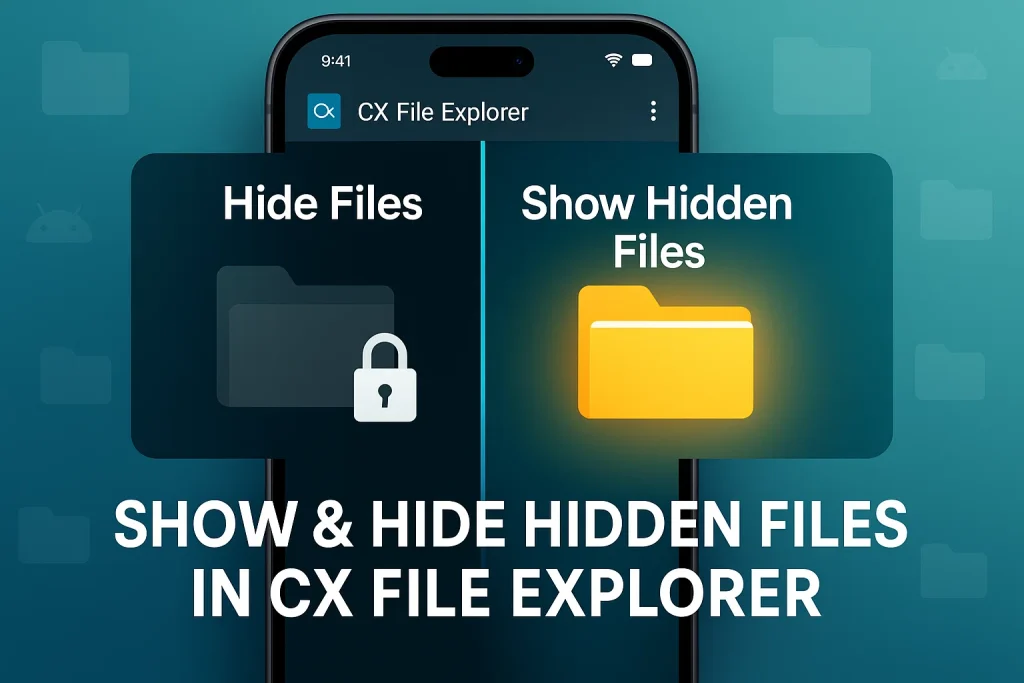
How to Show Hidden Files in CX File Explorer
- Open CX File Explorer on your Android device and go to the Local or Main Storage section.
- Tap the three-dot menu (⋮) or More Options icon, usually found at the top-right corner.
- From the dropdown, select Show Hidden Files, this instantly makes all hidden folders and items visible.
- You’ll now notice files or folders with a dot (.) prefix, like .nomedia or .hidden, appearing in your list.
- To hide them again, simply go back to the same menu and uncheck Show Hidden Files.
- Always be cautious when editing system files changing or deleting the wrong ones can affect app performance.
Troubleshooting – Can’t See Hidden Files?
If you’ve turned on Show Hidden Files in CX File Explorer but still can’t see them, don’t worry, it’s usually a simple fix. First, make sure you’re in the correct storage location (like Internal Storage or SD Card). Then, refresh the view or close and reopen CX File Explorer to reload your file list. Some system-protected folders may still stay invisible for security reasons, which is completely normal. Also, check your app permissions, if storage access is restricted, hidden files won’t appear. Once everything’s set, you’ll easily spot those hidden folders and manage your Android storage like a pro.
How to Hide Files in CX File Explorer
- Open CX File Explorer and navigate to the file or folder you want to keep private.
- Long-press the item to select it, then tap the Rename option from the menu.
- Add a dot (.) at the beginning of the file or folder name (for example, rename photos to .photos).
- Confirm the change, the file will instantly disappear from the main view, becoming a hidden file.
- To double-check, go to settings and toggle Show Hidden Files, you’ll see your hidden folder listed there.
- Avoid hiding system files or important app folders to prevent unwanted errors.
How to Unhide Files Again
- Open CX File Explorer and tap the three-dot menu or More Options icon.
- Select Show Hidden Files to make all hidden folders visible again.
- Find the file or folder you previously hid (it’ll usually start with a dot).
- Long-press it, choose Rename, and remove the dot (.) from the beginning of its name.
- Save the change, your file will now reappear in the normal file list.
CX File Explorer Alternatives for Managing Hidden Files
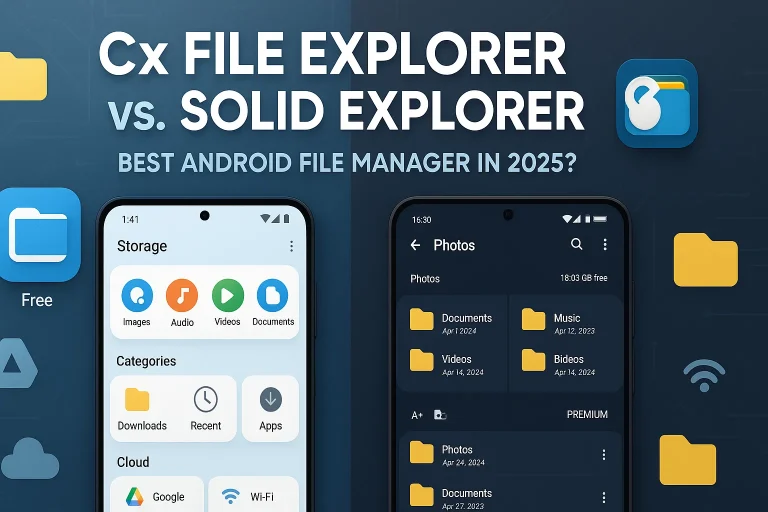
If you’d like to explore more tools beyond CX File Explorer, there are several great alternatives for managing hidden files on Android. Files by Google is perfect for beginners, it’s clean, secure, and automatically detects junk or duplicate data. Solid Explorer offers advanced privacy options like encryption and dual-panel browsing for power users. You can also try MiXplorer for deeper file management control and customization. Each of these apps makes handling hidden folders, organizing storage, and protecting sensitive files simple, so you can pick the one that best fits your comfort and workflow.
Conclusion
Managing hidden files in CX File Explorer is easier than most users think. You’ve learned how to show, hide, and unhide files step-by-step, along with a few reliable alternatives for Android file management. With just a few taps, you can organize your storage, protect private data, and keep your device running smoothly without digging into complex settings.
In our experience, CX File Explorer remains one of the most efficient and user-friendly tools for handling hidden folders. Still, apps like Files by Google or Solid Explorer can be great choices if you prefer different layouts or added security options. The key is to pick the tool that fits your workflow and comfort level best.
If you found this guide helpful, feel free to share it with friends who use Android or drop a comment below with your questions. Got stuck or facing an issue with CX File Explorer settings? Don’t worry, reach out through the app’s support section for quick help. Your feedback helps us keep creating helpful, trustworthy Android tips that genuinely make your digital life easier.