How to Set Up and Connect SMB Shares in Cx File Explorer
Ever wanted to access your PC files directly from your Android device without messy cables or cloud uploads? That’s exactly what Cx File Explorer with SMB sharing helps you do. With just a few taps, you can browse, transfer, and manage files across your home or office network as if they were stored locally. It’s fast, secure, and surprisingly simple once you know how to set it up.
If you’ve ever struggled with network sharing errors or failed SMB connections, you’re not alone many users face the same issues. But don’t worry, this guide walks you through every step clearly and confidently. As someone who’s tested Cx File Explorer’s SMB feature across different systems, I’ll show you practical, working methods you can trust no confusing jargon, no guesswork.
By the end of this article, you’ll know how to set up and connect SMB shares in Cx File Explorer the right way, plus learn a few pro tips for faster and more secure access. This isn’t just another generic guide; it’s a helpful, experience-backed walkthrough designed to save you time and frustration while keeping your files easily accessible and protected.
What Is an SMB Share?
An SMB share (short for Server Message Block) is a network file-sharing protocol that lets you access folders, files, or drives from another device like viewing your PC’s hard drive right from your Android phone. Think of it as a digital bridge that connects your devices over the same Wi-Fi network, making file transfers wirelessly, media streaming, and even document editing quick and seamless. It’s been used for years in Windows file sharing because it’s both reliable and secure. Once you understand how SMB sharing works, tools like Cx File Explorer make it incredibly easy to connect and manage your shared files in just a few taps.
Overview of Cx File Explorer
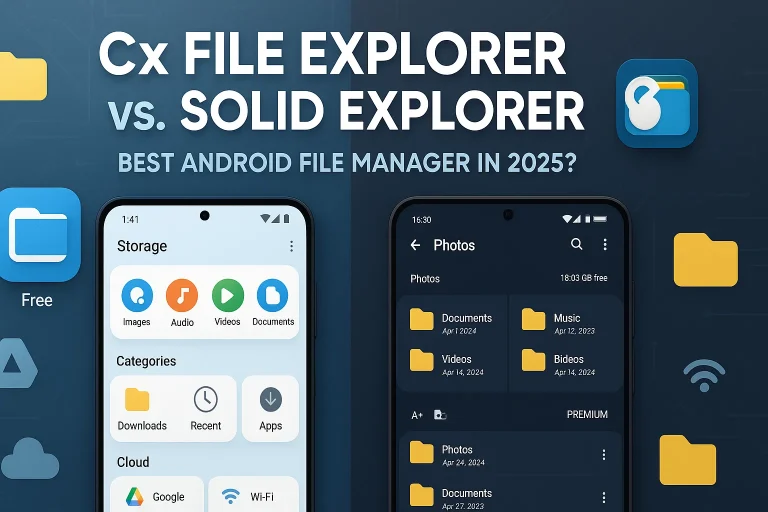
Cx File Explorer is a powerful yet lightweight Android file manager known for its clean interface, speed, and network access features like SMB, FTP, and cloud storage integration. It’s designed for people who want to manage files across multiple locations, whether it’s your phone, a shared network folder, or a Google Drive account, all in one place. What sets it apart is how effortlessly it handles SMB connections, giving you the freedom to browse, copy, and move files from your computer without needing a USB cable. With regular updates and a focus on privacy, Cx File Explorer has become one of the most trusted tools for both beginners and tech-savvy users who want secure, fast, and organized file management on Android.
How to Connect to an SMB Share in Cx File Explorer
Step 1 – Open the Network Tab
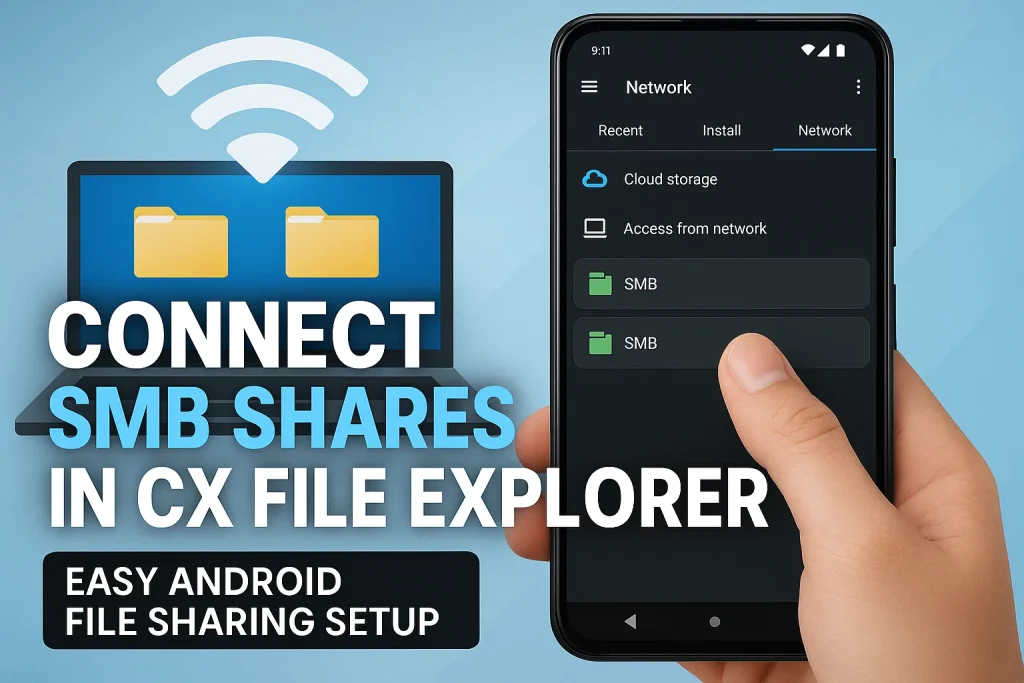
Open Cx File Explorer and tap the Network tab at the bottom. This section lets you connect to shared folders and remote storage on the same Wi-Fi network.
Step 2 – Add a New SMB Connection
Tap the “+” icon and choose SMB. You can let the app auto-detect available devices or add your shared folder manually.
Step 3 – Enter Server Details and Login Information
Type in your server address, username, and password (for example, smb://192.168.x.x). You can also connect as a guest if the share doesn’t need credentials.
Step 4 – Access and Manage Shared Files
Once connected, browse your SMB folders directly from the app. You can copy, move, or open files easily, just like managing files stored on your phone.
Tips for Secure and Efficient SMB File Access
- Always use strong usernames and passwords for your SMB connections to keep unauthorized users out. Avoid leaving shared folders open to “guest” access unless it’s absolutely necessary.
- Keep your devices and Cx File Explorer app updated. Updates often include security patches and better SMB protocol support, reducing the risk of connection errors or data leaks.
- Make sure your Android device and PC are on the same secure Wi-Fi network. Avoid using public networks for file sharing since they can expose your data to threats.
- Limit folder permissions, share only what’s needed. Giving full access to sensitive folders can cause data loss or privacy issues.
- Turn on encryption or password protection on your Windows or NAS device for an extra layer of safety when transferring important files.
- Regularly disconnect unused SMB connections from Cx File Explorer to prevent unwanted background access or slowdowns.
- Organize your shared folders properly, it not only improves speed but also makes file management easier across multiple devices.
Final Thoughts
Setting up and connecting SMB shares in Cx File Explorer is easier than most people think. With a few quick steps, you can access, transfer, and organize files across your Android device, PC, or NAS without cables or cloud uploads. Whether you’re managing work documents or streaming media, SMB sharing keeps everything connected securely under one network.
Overall, Cx File Explorer offers a reliable and user-friendly way to handle network file sharing. It’s lightweight, secure, and supports multiple storage options ideal for both beginners and power users. While every setup may differ slightly depending on your network configuration, the app’s intuitive interface makes troubleshooting and setup surprisingly simple.
If you found this guide useful, feel free to share it with others who might need help connecting SMB shares on Android. Got a question or ran into a connection issue? Drop a comment below or reach out to the Cx File Explorer support team, they’re quick to help and always open to feedback.