Cx File Explorer vs. Solid Explorer: Best Android File Manager
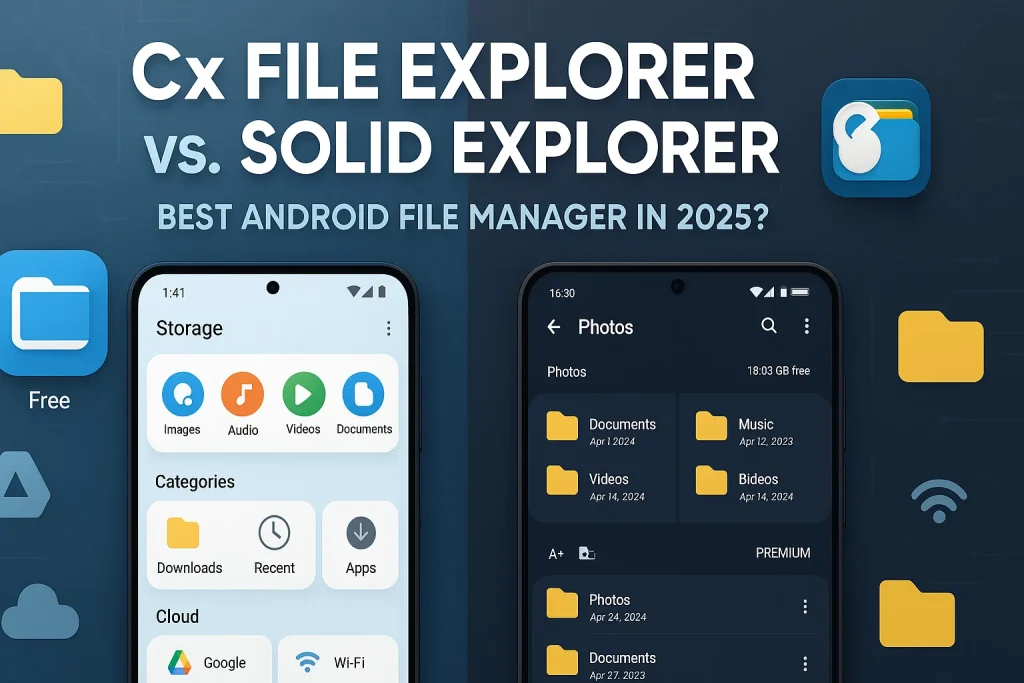
Choosing the right Android file manager can completely change how efficiently you organize your files and storage. If you’ve ever wondered whether Solid Explorer or Cx File Explorer is the better choice, you’re in the right place. Both are popular, feature-rich tools that promise smooth navigation, cloud access, and powerful management options but only one truly stands out for performance and reliability.
As someone who has tested several Android file management apps, I know how frustrating it feels to keep switching between options that look good on paper but fail in real use. You just want something that’s fast, secure, and easy to use without unnecessary ads or clutter. That’s why this honest comparison focuses on what actually matters performance, user experience, privacy, and value for money so you can confidently pick the one that fits your needs.
In this detailed breakdown, we’ll explore each app’s features, interface, cloud integration, and storage tools, comparing their strengths and weaknesses side by side. Whether you’re managing photos, documents, or entire network drives, this guide is designed to give you clear, tested insights not recycled marketing claims. By the end, you’ll know exactly whether Solid Explorer or Cx File Explorer deserves to be your go-to file manager for Android.
Overview
Solid Explorer
Solid Explorer is one of those Android file managers that instantly feels premium the moment you open it. Designed for users who want more control over their files, it offers dual-pane browsing meaning you can drag and drop files between folders just like on a desktop. With cloud storage support, file encryption, and even the ability to manage network drives (FTP, SMB, WebDAV), it’s perfect for both casual users and tech enthusiasts. Its modern interface, smooth animations, and deep customization make file management surprisingly enjoyable. What really sets Solid Explorer apart is its focus on security and flexibility, giving you the freedom to organize, protect, and access files your way. Whether you’re sorting photos, managing documents, or connecting to your Google Drive, this app strikes a smart balance between power and simplicity, exactly what an advanced Android user needs.
Cx File Explorer
Cx File Explorer is a lightweight yet powerful Android file manager that focuses on simplicity without cutting corners on functionality. Its clean and intuitive interface makes it super easy for beginners to navigate through files, folders, and even cloud storage accounts. Despite being free, it offers advanced options like network file sharing (FTP, SMB, LAN), storage analysis, and quick access to apps and media. What users love most is how fast and clutter-free it feels no unnecessary ads, no confusing menus, just smooth performance. For anyone who wants a reliable file management app that combines speed, clarity, and essential tools, Cx File Explorer proves that you don’t need a paid version to enjoy premium performance on Android.
Side-by-Side Comparison
| Feature | Solid Explorer | Cx File Explorer |
|---|---|---|
| User Interface | Modern, customizable dual-pane layout | Clean, simple, and easy to navigate |
| Ease of Use | Slight learning curve for new users | Beginner-friendly with intuitive design |
| Cloud Storage Support | Supports Google Drive, Dropbox, OneDrive & more | Supports major cloud platforms seamlessly |
| Network Access | FTP, SMB, WebDAV, SFTP support | FTP, SMB, and LAN access available |
| File Encryption | Built-in encryption for files & folders | Basic privacy protection, no advanced encryption |
| Storage Analysis | Detailed file and folder insights | Visual storage analyzer with quick stats |
| Performance & Speed | High-speed transfers, very stable | Lightweight, fast, and smooth performance |
| Customization | Themes, icons, and layout control | Minimal customization options |
| App Size | Around 20–25 MB | Around 8–10 MB (lighter) |
| Pricing | Paid after trial (one-time purchase) | Completely free with no hidden costs |
| Best For | Power users who want advanced features | Casual users who prefer simplicity |
Pros and Cons
Pros of Solid Explorer
- Offers a dual-pane interface for faster and easier file management.
- Supports multiple cloud storage services like Google Drive, Dropbox, and OneDrive.
- Provides strong file encryption and password protection for privacy-conscious users.
- Highly customizable with themes, icon packs, and layout options.
- Handles network file sharing (FTP, SMB, WebDAV) efficiently.
- Reliable and stable performance even with large files or folders.
- Great for power users who want complete control over their storage.
Cons of Solid Explorer
- Requires a paid license after the free trial ends.
- Slightly heavier app size compared to other Android file managers.
- May feel overwhelming for beginners due to its advanced features.
- Occasional bugs reported after major Android updates.
Pros of Cx File Explorer
- Completely free to use with no hidden charges or ads.
- Clean and minimal interface that’s perfect for beginners.
- Includes storage analysis tools to visualize and manage space easily.
- Smooth performance and quick file access, even on low-end devices.
- Supports network connections (FTP, SMB, LAN) and cloud storage integration.
- Lightweight app that uses very little system memory.
Cons of Cx File Explorer
- Limited customization options compared to Solid Explorer.
- Lacks advanced file encryption or password protection features.
- Doesn’t offer dual-pane browsing or advanced multitasking tools.
- Slightly basic design may not appeal to users wanting more features.
Which File Manager Should You Choose?
When it comes to choosing between Solid Explorer and Cx File Explorer, it really depends on what kind of Android user you are. If you love customization, advanced controls, and tight file encryption for privacy, Solid Explorer is worth the one-time purchase it’s built for power users who want a professional-grade file management experience. On the other hand, if you prefer something lightweight, free, and effortless to use, Cx File Explorer is a fantastic choice. It covers all the essentials like cloud storage access, network file sharing, and storage analysis, without slowing down your phone. In short, Solid Explorer is for users who want depth, while Cx File Explorer is for those who value simplicity both are among the best Android file managers you can trust today.
FAQs
Final verdict
Both Solid Explorer and Cx File Explorer stand out as two of the best Android file managers available today, each excelling in different areas. Solid Explorer delivers a premium experience with advanced file encryption, customization, and cloud integration, while Cx File Explorer shines with its lightweight design, speed, and simplicity. No matter your needs managing files, organizing storage, or accessing network drives both apps make Android file handling smoother and smarter.
If you’re looking for a professional-grade tool packed with features, Solid Explorer is the clear winner. But if you prefer a clutter-free, easy-to-use file management app that performs fast and doesn’t cost a dime, Cx File Explorer won’t disappoint. Ultimately, the best choice depends on how deeply you want to manage your device’s storage and how much customization you value.
Still unsure which one fits your daily use? Drop your thoughts in the comments we’d love to hear your experience with these file explorer apps. And if you run into any confusion or need personalized guidance, feel free to reach out to our support team. Let’s help you find the perfect Android file manager for your workflow.