How to Get Cx File Explorer on Oculus (Meta) Quest 2
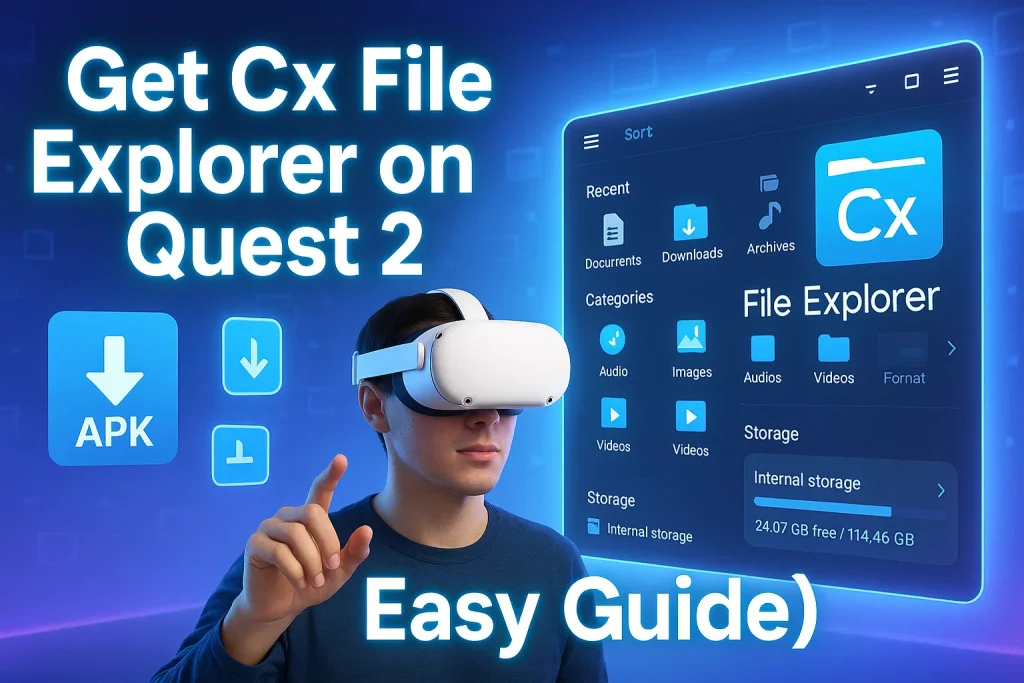
If you’ve ever tried managing files on your Oculus Quest 2 and realized how limited the built-in options are, you’re not alone. Many people who use the Quest for gaming, modding, or realistic simulations want a solid, lightweight file manager to easily store, organize, and manage data. That’s where Cx File Explorer comes in — a powerful, best-in-class, and lifelike tool that gives you full control over your files in just a few taps. Whether you’re looking to fulfill your desires for smoother interactions or simply keep your storage neat, this File Explorer makes it simple.
Installing Cx File Explorer on your Quest 2 or 3 might sound a bit technical at first, but don’t worry — you don’t need to be an expert. In this guide, I’ll walk you through each step clearly and safely, just like thousands of other Quest users who’ve done it successfully. By the end, you’ll have Cx File Explorer running on your VR headset, ready to help you manage, store, and explore your data effortlessly in a more realistic, interactive, and lifelike way.
How to Download Cx File Explorer on Quest 2 or 3 (With PC)
If you’ve got a PC handy, installing Cx File Explorer on your Quest 2 or Quest 3 is quick and painless. You’ll just need two things: the Cx File Explorer APK and a tool called SideQuest — a free app that lets you sideload content onto your headset.
Step 1: Get the Required Files
Start by downloading the Cx File Explorer APK file to your computer. You can find it from a trusted APK source online — just make sure it’s the latest version. Next, head to sidequestvr.com and grab the SideQuest app for your operating system (Windows, macOS, Linux, or even Android). Once it’s installed, open SideQuest and sign in with your Google, Discord, or email account.
Step 2: Connect Your Quest
Now it’s time to connect your headset. Plug your Quest 2 or 3 into your PC using a USB-C cable. When prompted inside the headset, hit Allow to give your computer permission to access it. You’ll know everything’s connected when SideQuest shows your headset as “Active” or “Connected.”
Step 3: Install Cx File Explorer
With your Quest linked, click the “Install APK from folder” icon in the top-right corner of the SideQuest window. Select the Cx File Explorer APK you downloaded earlier, then sit back while it installs. The process usually takes less than a minute.
Step 4: Launch It on Your Headset
Once the installation finishes, you can disconnect your Quest. Put on your headset, go to Apps → Unknown Sources, and you’ll see Cx File Explorer ready to launch. Open it up, and you’ll have a full-featured file manager right inside your VR headset — perfect for organizing, transferring, or managing your files without needing to remove it.
How to Install Cx File Explorer on Quest 2 or 3 (Without a PC)
You can install Cx File Explorer directly on your Quest 2 or 3 without using a computer. Just follow these simple steps:
Open the Meta Quest Store on your headset. Search for Mobile VR Station and install it. It’s free and quick to download.
Download the Cx File Explorer APK
- Open your browser inside the headset.
- Visit the official Cx File Explorer download page and tap “Download Now.”
Launch Mobile VR Station
- Go to Local Files → All Folders → Android → data → Scoped Storage Actions → Request Access.
- Allow storage access when prompted.
Find the APK file
- Use the breadcrumb bar at the top to go back to your Quest 2 or Quest 3 main directory.
- Open the Download folder — you’ll see the Cx File Explorer APK there.
Install the APK.
- Select the file, tap Install, and wait for it to finish.
- Once done, press Done (not Open) and close Mobile VR Station.
Open Cx File Explorer.
- In your App Library, choose Unknown Sources.
- You’ll find Cx File Explorer listed — open it and start managing your files.
How to Use Cx File Explorer on Quest 2
Once installed, Cx File Explorer gives you full access to your Quest 2’s internal storage. You can browse folders, move downloaded files, copy games, or even connect to your PC via Wi-Fi. The interface feels familiar like using a regular Android file manager so it’s easy for beginners. You can also access cloud drives or shared network folders, making it a complete file management solution for Oculus Quest 2.
Is Cx File Explorer Available on the Meta Quest Store?
Unfortunately, Cx File Explorer isn’t available on the official Meta Quest Store, which often surprises new users looking for an easy file manager for Oculus Quest 2. Meta limits certain system-level apps, so you’ll need to sideload Cx File Explorer using tools like SideQuest or ADB. Don’t worry this method is completely safe and widely used by the Quest community. Think of it as installing a trusted app manually instead of downloading it from a store. Once installed, it works just like any native app, letting you easily browse, move, or manage files right inside your Meta Quest 2 headset.
Troubleshooting Cx File Explorer Installation Issues
If Cx File Explorer doesn’t appear under “Unknown Sources,” try reconnecting your headset and reinstalling the APK through SideQuest. Make sure Developer Mode is still enabled in your Meta app. Restarting both your PC and headset can also fix most detection issues. For stubborn cases, updating your SideQuest software or using a different USB cable often helps.
Final Thoughts
Installing Cx File Explorer on your Meta Quest 2 is a simple yet powerful way to take full control of your VR storage. From enabling Developer Mode to using SideQuest for safe sideloading, you’ve now learned how to manage, move, and access files right from inside your headset. With this lightweight file manager, everyday tasks like transferring media or organizing downloads become quick and effortless.
That said, it’s always smart to approach sideloading with awareness. While Cx File Explorer is trusted by thousands of Oculus Quest 2 users, always download the APK from reliable sources to keep your device secure. This ensures you get all the benefits without compromising safety or performance. Think of it as managing your files the smart way not the risky way.