How to Use Cx File Explorer: A Complete Beginner’s Guide
Managing files on your Android device shouldn’t feel like solving a puzzle. That’s where Cx File Explorer steps in a clean, fast, and reliable file manager app designed to make storage management effortless. Whether you’re organizing photos, moving videos, or connecting to cloud storage, this powerful tool helps you take control of your files without the clutter or confusion of other apps.
Many Android users struggle with finding a safe, easy-to-use file manager that doesn’t bombard them with ads or confusing menus. If that sounds familiar, you’re in the right place. Having tested and reviewed multiple Android file explorers, I can confidently say that Cx File Explorer strikes the perfect balance between simplicity, speed, and security, even for beginners.
In this guide, you’ll learn how to use Cx File Explorer step by step, from installation to advanced features like network file sharing and storage analysis.
What Is Cx File Explorer?
Cx File Explorer is a lightweight yet powerful Android file manager app that helps you browse, organize, and manage all your files in one place without the clutter. It gives you quick access to your internal storage, SD card, cloud drives, and even network files through a clean, intuitive interface. Unlike many bulky file explorers, Cx File Explorer focuses on speed, simplicity, and privacy, making it ideal for both beginners and tech-savvy users. Whether you’re transferring photos, analyzing storage, or connecting to Google Drive or FTP servers, this app makes file management feel effortless.
Getting Started with Cx File Explorer
Understanding the Main Interface
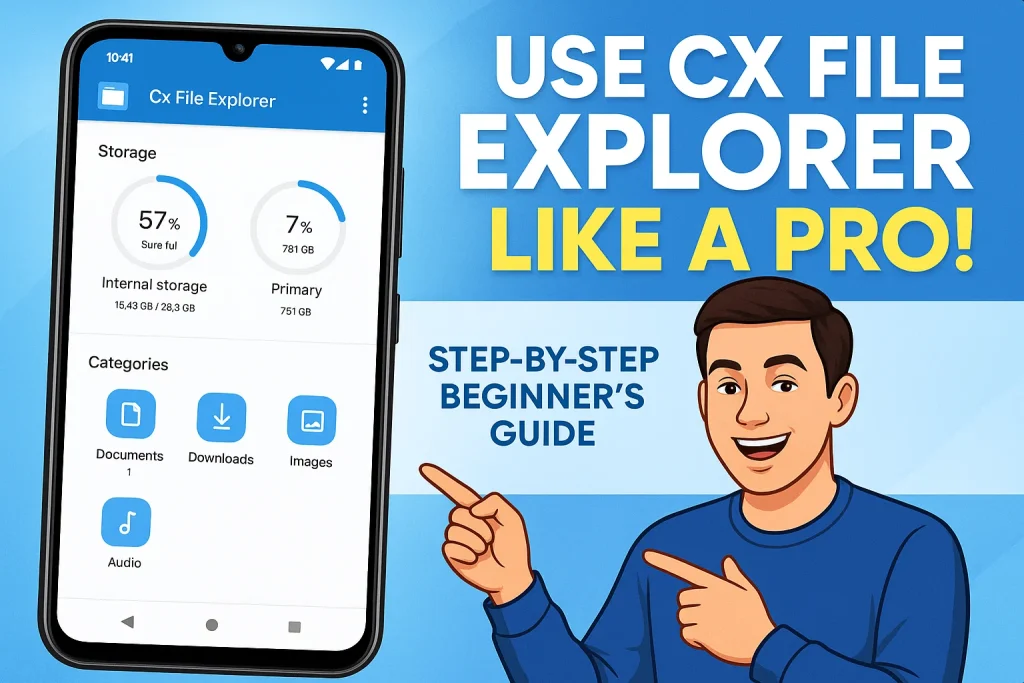
When you first open Cx File Explorer, you’ll notice how clean and organized the layout feels no clutter, no confusing tabs. The main dashboard displays sections like Storage, Library, and Network, giving you instant access to everything you need. You can quickly view your internal storage, cloud accounts, and connected devices from one screen. The icons are simple, the colors are easy on the eyes, and even if you’re new to file management, you’ll get the hang of it in seconds.
Navigating Files and Folders
Moving around in Cx File Explorer is just like browsing folders on your computer tap, open, and explore. You can easily move, copy, rename, or delete files with a long press and quick menu selection. The built-in search bar helps you find files in seconds, even if you’ve forgotten where you saved them. Plus, you can switch between grid and list view depending on how you like to organize things. It’s designed to feel natural and intuitive, so managing your files never feels like a chore.
Accessing Internal and External Storage
One of the best parts of Cx File Explorer is how effortlessly it handles both internal and external storage. You can access files stored on your phone, SD card, or even USB OTG drives if supported. The app automatically detects connected storage devices, displaying them clearly on your main screen. This makes transferring photos, videos, or documents between your phone and external storage super simple. It’s perfect for users who like to keep their data organized and backed up safely.
Managing Files Using Cx File Explorer
Managing your files with Cx File Explorer is simple, fast, and refreshingly intuitive no tech skills required. The app lets you copy, move, rename, and delete files with just a few taps, so keeping things organized feels effortless. Need to clean up storage space or group similar files? You can create folders, drag and drop items, or even select multiple files at once for batch actions. It’s as smooth as managing files on a desktop only faster.
If you’re someone who downloads a lot of photos, videos, or documents, you’ll love the built-in search and sort features. You can quickly locate files by name, size, or date, and preview images or videos without opening another app. Cx File Explorer even shows file details like format and size, helping you stay on top of your storage usage. It’s perfect for users who like things neat and efficient.
Another underrated feature is its multi-tab browsing, which allows you to open several folders simultaneously great when you’re transferring files between locations. Combine that with the app’s lightweight performance, and you get a file manager for Android that’s both powerful and easy on resources. Whether you’re organizing work documents or clearing out old downloads, Cx File Explorer keeps everything under control with a clean, user-friendly design.
Using Cx File Explorer for Cloud and Network Access
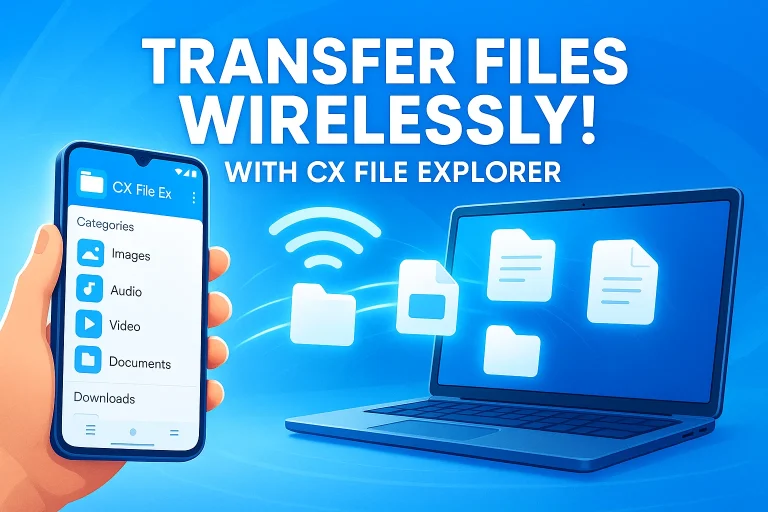
One of the standout features of Cx File Explorer is its seamless cloud and network access. You can easily connect your favorite cloud storage accounts like Google Drive, Dropbox, or OneDrive and manage all your online and offline files in one place. Need to transfer files between your phone and computer? Just use the built-in FTP, SMB, or LAN connection no cables required. This feature is perfect for anyone who works across multiple devices or loves keeping backups online. With Cx File Explorer, accessing your cloud files and network storage feels as simple as browsing your local folders fast, secure, and hassle-free.
Advanced Features of Cx File Explorer
Managing Installed Apps Easily
What impressed me most about Cx File Explorer is how smoothly it handles app management. You can view all your installed apps, check their storage size, and even back them up or uninstall the ones you no longer use. It’s like having a mini control panel for your Android device. This feature is especially helpful if your phone starts slowing down you can instantly spot which apps are taking up too much space. It’s quick, efficient, and genuinely useful for keeping your device optimized.
Smart Storage Analysis Tool
The storage analysis feature in Cx File Explorer feels like having a built-in digital assistant for your phone. It visually shows how your storage is used from photos and videos to apps and downloads making it easy to identify what’s eating up space. I found it incredibly helpful when cleaning up large files I didn’t even realize were there. For anyone struggling with low storage issues, this tool offers clarity and control without needing any third-party app.
File Compression and Extraction Made Simple
If you often deal with ZIP or RAR files, Cx File Explorer makes the process a breeze. You can compress multiple files into one folder or extract archived files directly without switching apps. I’ve used it to send large work folders quickly, and it saved both time and effort. It’s a feature that truly adds convenience especially for students, professionals, or anyone who frequently shares files online. It’s smooth, fast, and perfectly integrated into the main interface.
Tips and Tricks for Better File Management
- Use the storage analyzer regularly to spot and delete large or duplicate files.
- Create custom folders to organize photos, documents, and downloads neatly.
- Add shortcuts for frequently used folders on your home screen for faster access.
- Enable cloud connections like Google Drive or Dropbox to keep backups safe and accessible anywhere.
- Try multi-tab browsing to move files between folders without losing your place.
- Use the search bar to quickly locate files instead of scrolling endlessly.
- Compress large folders using the built-in ZIP feature to save space.
- Rename files with clear labels so you can find them easily later.
- Check app permissions occasionally to ensure secure file access.
- Clean up your Downloads folder every few weeks to keep storage clutter-free.
Troubleshooting Common Issues
- If Cx File Explorer isn’t opening, try clearing the app cache and data from your device settings.
- When files don’t show up, refresh the folder or check your storage permissions.
- If the app crashes frequently, make sure you’ve updated to the latest version from the Google Play Store.
- Can’t access your SD card? Reinsert it or restart your phone to re-establish the connection.
- For cloud storage issues, verify your internet connection or re-link your Google Drive or Dropbox account.
- If network access (FTP/SMB) fails, double-check your Wi-Fi network and login credentials.
- Slow file transfers? Try restarting the app or closing other apps running in the background.
- If you accidentally deleted files, check the Recycle Bin (if enabled) before they’re gone for good.
Is Cx File Explorer Safe to Use?
Yes, Cx File Explorer is completely safe to use. It’s a trusted file manager app that doesn’t collect personal data or bombard you with ads, unlike many alternatives. The app only requests essential storage permissions needed to manage your files, and it doesn’t access your private information. Users also appreciate that Cx File Explorer runs offline, so your data stays secure on your device. With millions of downloads and positive reviews on the Google Play Store, it’s clear this app values user privacy, reliability, and transparency exactly what you want in a modern Android file manager.
FAQs
Final Thoughts
If managing your phone’s files has ever felt confusing or cluttered, Cx File Explorer changes that experience completely. It combines the simplicity of a beginner-friendly Android file manager with the performance of a pro-level tool. From organizing your photos to accessing cloud storage and network files, everything feels smooth, fast, and secure exactly how file management should be.
As someone who’s tested dozens of file explorer apps, I can confidently say Cx File Explorer stands out for its balance of power, privacy, and ease of use. It respects your data, runs without intrusive ads, and delivers real value without hidden costs. If you’ve been searching for a trusted, ad-free file manager, this one truly earns its place on your device.
So, go ahead download Cx File Explorer and start exploring your files smarter, not harder. Whether you want to clean up space, back up documents, or manage internal and external storage, this guide has shown you everything you need to get started. Keep it handy, share it with friends, and make the most of a file manager that’s built to make Android life easier.