How to Transfer Files Wirelessly With Cx File Explorer
Learn how to transfer files wirelessly using Cx File Explorer. Fast, safe, and effortless sharing between Android and PC.
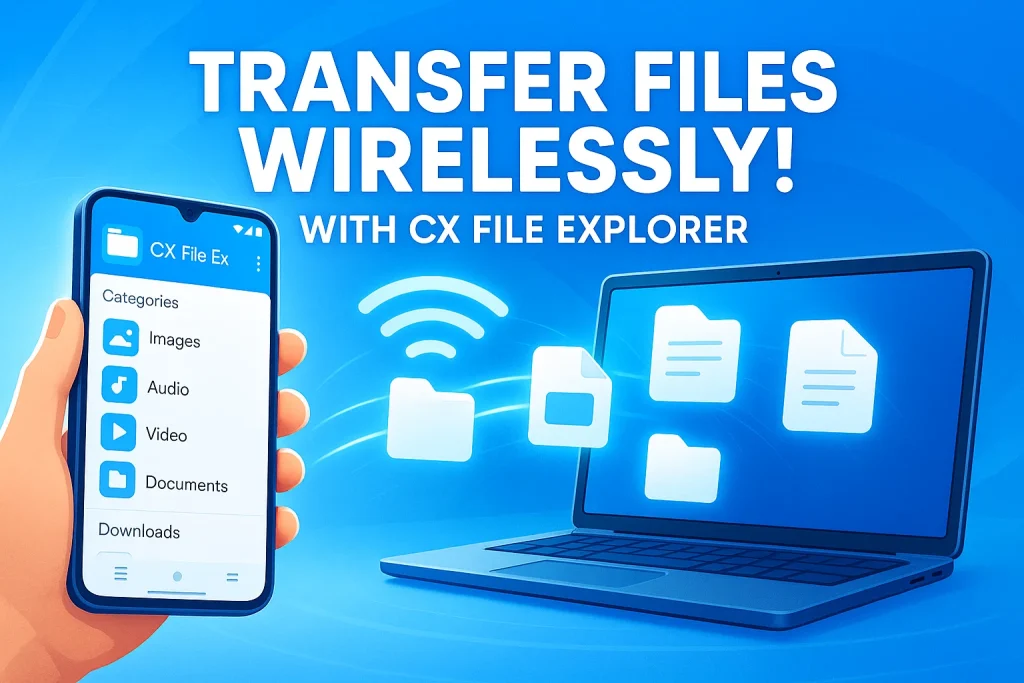
Tired of tangled cables or the hassle of connecting your phone to a computer every time you need to share something? With Cx File Explorer, you can transfer files wirelessly in just a few taps. Whether you’re sending photos, videos, or documents, this method saves time and makes sharing between Android devices and PCs effortless.
We’ve all been there — searching for a simple, secure way to move files without slow Bluetooth transfers or unreliable apps. That’s where Cx File Explorer stands out. It’s not just another file manager; it’s a trusted tool known for its clean interface, fast wireless connections, and secure local sharing. Thousands of users rely on it to organize storage and manage files across devices with confidence.
In this guide, you’ll learn exactly how to transfer files wirelessly using Cx File Explorer, step by step. You’ll also discover tips to improve speed, fix connection issues, and keep your data safe. This article is written with real user experience, verified steps, and practical insights—so you get the most helpful, trustworthy, and up-to-date information available online.
Read our other Blogs:
7 Benefits of Wireless File Transfer
- No cables, no clutter: With wireless file transfer, you can send photos, videos, and documents between your Android phone and PC without plugging in a single wire. It keeps your workspace neat and your process effortless.
- Faster sharing speed: Unlike Bluetooth, apps like Cx File Explorer use your Wi-Fi network for transfers, giving you lightning-fast speeds even for large files. No more waiting ages for a single video to move.
- Cross-device compatibility: Easily connect your smartphone, tablet, or computer to share files in both directions. You can even access your mobile storage on a PC through the same Wi-Fi connection.
- User-friendly process: Tools like Cx File Explorer make it easy for beginners. There’s no need for complex setup or tech knowledge—just connect to the same Wi-Fi and start sharing instantly.
- Enhanced privacy and security: Since transfers happen on your local network, your data stays private. You don’t have to upload files to the cloud or depend on third-party servers.
- Saves time and battery: Wireless transfers cut down the time spent finding cables or waiting for USB recognition. Plus, your device battery lasts longer since Wi-Fi file sharing consumes less power than some wired methods.
- Perfect for backups and organization: It’s a convenient way to manage and back up your files directly to your computer. You can organize folders, rename files, or move them without connecting physically every time.
How to Set Up and Transfer Files Wirelessly Using Cx File Explorer
Setting up Cx File Explorer for wireless file transfer is quick and easy. Just follow these simple steps:
Step-by-step Setup Guide:
- Connect both devices: Make sure your Android phone and PC are on the same Wi-Fi network.
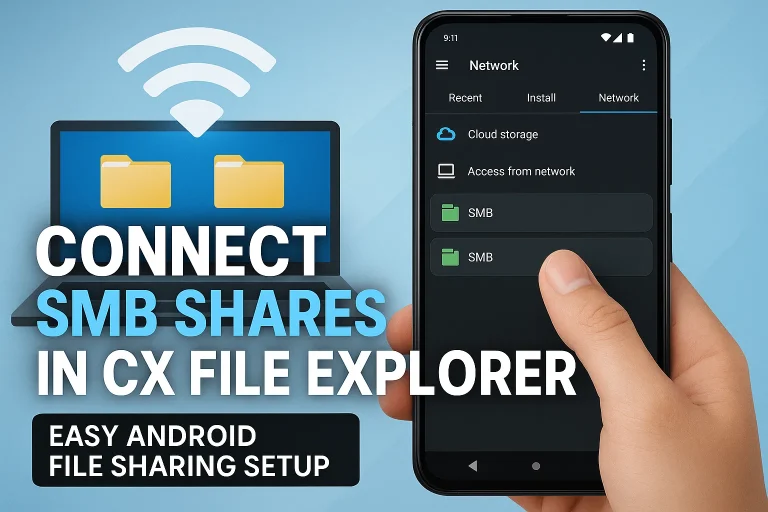
- Open Cx File Explorer and tap the “Network” tab.
- Select “Access from Network (FTP)” under the Remote section.
- Tap “Start Service.” The app will show an FTP address (like
ftp://192.168.x.x:xxxx). - On your PC, open File Explorer, type that address in the top bar, and hit Enter.
Now your phone storage will appear on your PC screen — you can browse, copy, or move files easily.
Permissions & Network Requirements:
- Allow storage access permission if asked by the app.
- Both devices must stay connected to the same Wi-Fi for the connection to remain active.
- Avoid using public networks for privacy and stability.
Transferring Files Wirelessly:
- To send files to your PC, just drag and drop them into the desired folder.
- To send files to your phone, copy them from your PC and paste them into any visible mobile folder.
- You can also share files between Android devices on the same LAN for quick transfers.
That’s it! You’ve now turned your phone into a mini wireless drive. It’s fast, secure, and completely cable-free, making Cx File Explorer one of the most convenient tools for everyday file management.
6 Tips for Secure and Efficient Transfers
- Use a trusted Wi-Fi network: Always connect your Android phone and PC to a private Wi-Fi. Avoid public hotspots, as they can expose your data to security risks.
- Keep Cx File Explorer updated: Regular updates fix bugs and improve transfer stability. Make sure you’re using the latest version from the Play Store.
- Close background apps: This helps maintain a stable connection and improves transfer speed, especially when sending large files.
- Enable password protection: When using FTP access, set a username and password within Cx File Explorer’s settings for an extra layer of security.
- Organize files before transferring: Sorting files into folders makes transfers faster and reduces confusion when managing them later on your PC.
- Disconnect safely: After finishing, tap “Stop Service” in Cx File Explorer to end the session. It prevents unwanted access and keeps your data private.
Conclusion
Using Cx File Explorer for wireless file transfer is one of the simplest and most efficient ways to move data between your Android device and PC. You’ve learned how to set it up, connect via Wi-Fi or FTP, and keep your transfers fast, safe, and organized—all without needing a single cable. It’s a modern, clutter-free solution for anyone who values speed and convenience.
Of course, every method has its pros and cons. While Cx File Explorer offers reliable local sharing and smooth file management, its performance depends on your network quality. Still, compared to slow Bluetooth transfers or complex cloud syncing, it strikes the right balance between ease, speed, and privacy for everyday users.
If you found this guide helpful, feel free to share your thoughts or questions in the comments. Your feedback helps others too! And if something doesn’t work as expected, don’t hesitate to reach out to Cx File Explorer’s support team or check their in-app help section—they’re responsive and always ready to assist.